Alt Store installation Guide for sideloading apps

How to install AltStore (Windows)

This page will guide you through the process of installing AltStore on your iPhone or iPad using your MacOS computer. Soon you will be able to sideload apps on your device.

Before you install AltStore

  • Download and install iTunes and iCloud from directly from Apple (not from Microsoft Store)

Installing AltStore

  • Download AltServer for Windows
  • Extract AltServer.zip and run Setup.exe
  • Goto your windows taskbar and search “Alt Server” thank click on “Run as administrator”. Make sure to allow access to private networks if prompted. AltServer will appear on taskbar as an icon.
  • Make sure you have iTunes and iCloud running on your Computer.
  • Connect your iOS device to your computer and make sure its unlocked.
  • Trust your device with computer if needed.
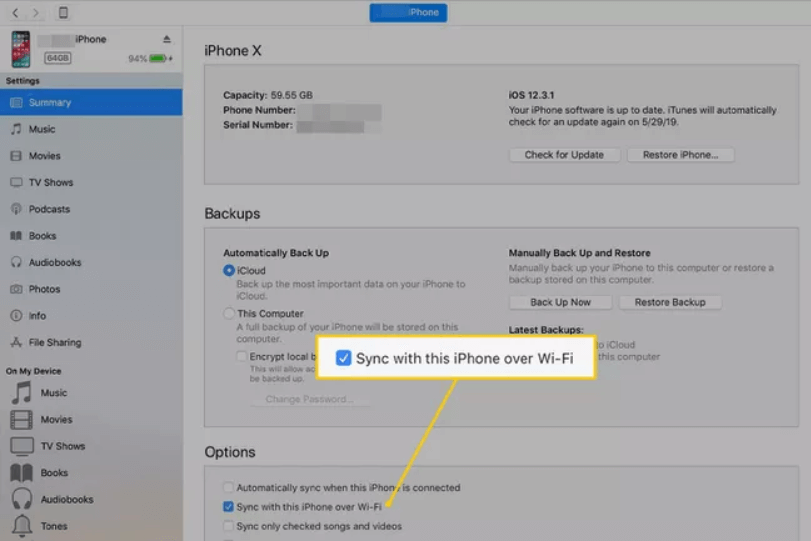
  • Open iTunes and enable “WiFi synce” on your device.
  • Click the AltServer icon on bottom right taskbar. Then go to “Install AltStore” and choose your iOS device.
  • Enter your Apple ID email and password, this will allow AltStore to configure your device to support Sideloading apps.

Your Apple ID and password are sent only to Apple — not AltStore or anyone else.

  • Wait a few seconds, then AltServer notification will appear saying AltStore has been successfully installed on your device.
  • On your iOS device, go to Settings -> General -> Profiles & Device Management. Tap “Trust [Your Apple ID],” then tap “Trust” again to confirm.

Enable Developer Mode (iOS 16+)

  • To use AltStore on iOS 16 or later, you need to enable Developer Mode on your device by going to Settings -> Privacy and Security -> Developer Mode.

You are now ready to sideload apps on your iOS device.
Similar Posts

Leave a Reply

Your email address will not be published. Required fields are marked *